


xsukax Password Manager
# 🔐 xsukax Password Manager
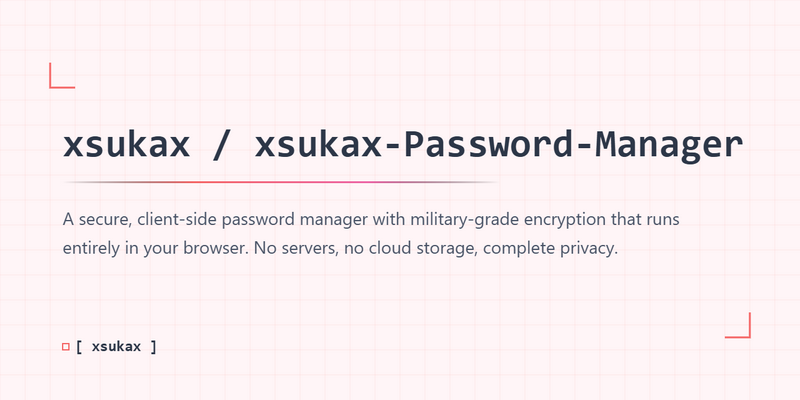
A secure, client-side password manager with military-grade encryption that runs entirely in your browser. No servers, no cloud storage, complete privacy.
**Github Repo:** [https://github.com/xsukax/xsukax-Password-Manager](https://github.com/xsukax/xsukax-Password-Manager)
**Demo:** [https://xsukax.github.io/xsukax-Password-Manager](https://xsukax.github.io/xsukax-Password-Manager)
[](https://www.gnu.org/licenses/gpl-3.0)
[](https://github.com/xsukax/xsukax-Password-Manager)
[](https://github.com/xsukax/xsukax-Password-Manager)
[](https://github.com/xsukax/xsukax-Password-Manager)
[](https://github.com/xsukax/xsukax-Password-Manager)
## 📋 Project Overview
xsukax Password Manager is a standalone, browser-based password management application designed for users who prioritize security, privacy, and complete control over their sensitive data. Built as a single HTML file with no external dependencies, this application provides enterprise-level encryption using modern Web Crypto API standards while maintaining simplicity and portability.
The application operates entirely on the client side, ensuring that your passwords never leave your device unless you explicitly export them. All data is encrypted using AES-256-GCM encryption with PBKDF2 key derivation (600,000 iterations) and HMAC-SHA256 integrity verification, providing multi-layered protection against unauthorized access and data tampering.
## 🛡️ Security and Privacy Benefits
### Cryptographic Security
– **AES-256-GCM Encryption**: Utilizes Advanced Encryption Standard with 256-bit keys in Galois/Counter Mode, providing authenticated encryption that protects against both confidentiality and integrity attacks
– **PBKDF2 Key Derivation**: Employs Password-Based Key Derivation Function 2 with 600,000 iterations and SHA-256 hashing to derive encryption keys from your master password, making brute-force attacks computationally infeasible
– **HMAC-SHA256 Integrity Protection**: Implements Hash-based Message Authentication Code using SHA-256 to ensure vault integrity and detect any tampering attempts during import/export operations
– **Cryptographically Secure Random Generation**: Uses `crypto.getRandomValues()` for generating initialization vectors, salts, and passwords, ensuring true randomness rather than pseudo-random generation
### Privacy Architecture
– **Zero Server Communication**: The application runs entirely in your browser with no network requests, API calls, or telemetry, ensuring your data never leaves your control
– **No Cloud Storage**: All data remains local to your device unless you explicitly export it, eliminating risks associated with cloud breaches or unauthorized access
– **Client-Side Only Processing**: All encryption, decryption, and data processing occur exclusively on your device, with no server-side components that could be compromised
– **Memory-Only Key Storage**: Master keys exist only in memory during active sessions and are cleared upon locking the vault, preventing persistent storage of sensitive cryptographic material
– **No Analytics or Tracking**: The application contains no tracking scripts, analytics, or third-party integrations that could compromise your privacy
### Data Protection Features
– **Encrypted File Attachments**: Supports secure storage of files up to 5MB each, with each attachment individually encrypted using your master key
– **Session-Based Security**: Automatic vault locking requires re-authentication with the master password, preventing unauthorized access during idle periods
– **Secure Password Generation**: Built-in cryptographically secure password generator creates strong, random passwords using a full character set
– **Import/Export Protection**: Vault export files (.xpm) include HMAC signatures to verify authenticity and detect corruption or tampering
## ✨ Features and Advantages
### Core Functionality
– **Intuitive Password Management**: Store unlimited passwords with comprehensive metadata including username, email, website, and custom notes
– **Flexible Organization**: Create custom categories to organize passwords by type, project, or any classification system that suits your workflow
– **Advanced Search**: Rapidly locate entries using full-text search across all fields including titles, usernames, emails, websites, notes, and custom fields
– **Custom Fields**: Add unlimited custom key-value pairs to entries for storing additional information like security questions, account numbers, or API keys
– **Secure Attachments**: Store encrypted files alongside password entries, perfect for keeping backup codes, recovery keys, or related documents
### User Experience
– **GitHub-Inspired UI**: Clean, modern dark theme interface following GitHub’s design language for familiarity and reduced eye strain
– **Single-File Application**: Entire application contained in one HTML file—no installation, no dependencies, no complexity
– **Cross-Platform Compatibility**: Works on any modern browser (Chrome, Firefox, Safari, Edge) across Windows, macOS, Linux, iOS, and Android
– **Offline Capability**: Once loaded, the application functions completely offline, making it ideal for air-gapped systems or locations without internet access
– **Portable Vault Format**: Export and import your encrypted vault as a single .xpm file, enabling easy backup and transfer between devices
### Security Advantages Over Alternatives
– **No Trust Required**: Unlike cloud-based password managers, you don’t need to trust a service provider with your encrypted data
– **Open Source Transparency**: Single-file architecture makes the entire codebase easily auditable by security professionals and privacy-conscious users
– **Zero Attack Surface**: No servers, databases, or APIs means no online attack vectors for malicious actors to exploit
– **No Subscription Fees**: Completely free with no premium tiers, feature limitations, or recurring costs
– **No Vendor Lock-In**: Standard cryptographic implementations and open file format ensure your data remains accessible regardless of application availability
## 🚀 Installation Instructions
### Quick Start
1. **Download the Application**
“`bash
git clone https://github.com/xsukax/xsukax-Password-Manager.git
cd xsukax-Password-Manager
“`
2. **Open in Browser**
– Simply open `index.html` in any modern web browser
– No build process, compilation, or additional setup required
### Alternative Installation Methods
**Direct Download**
– Download `index.html` directly from the repository
– Save to your preferred location
– Double-click to open in your default browser
**Bookmark Method**
– Navigate to the GitHub repository
– Open `index.html` in your browser
– Bookmark the page for quick access
**Local Web Server** (Optional)
“`bash
# Using Python 3
python -m http.server 8000
# Using Node.js
npx http-server
# Access at http://localhost:8000
“`
### Browser Compatibility
Requires a modern browser with Web Crypto API support:
– Chrome/Edge 60+
– Firefox 57+
– Safari 11+
– Opera 47+
### Security Recommendation
For maximum security, consider:
1. Saving the HTML file to an encrypted drive or partition
2. Running the application from a USB drive kept in secure storage
3. Using the application in private/incognito mode to prevent browser history storage
4. Regularly backing up your exported vault files to multiple secure locations
## 📖 Usage Guide
### First-Time Setup
1. **Launch Application**: Open `index.html` in your browser
2. **Create Master Password**: Enter a strong master password (minimum 6 characters, recommended 16+ with mixed characters)
3. **Access Vault**: Click “Unlock” to initialize your vault
### Managing Password Entries
**Adding a New Entry**
1. Click “+ New Entry” button
2. Fill in the entry details:
– **Title** (required): Descriptive name for the entry
– **Category**: Select or create a category for organization
– **Username**: Account username
– **Email**: Associated email address
– **Password**: Use “Generate” for a secure random password
– **Website**: URL of the service
– **Notes**: Additional information
– **Custom Fields**: Add any extra key-value pairs
– **Attachments**: Upload encrypted files (max 5MB each)
3. Click “Save” to store the entry
**Editing an Entry**
– Click on any entry card to open the edit modal
– Modify fields as needed
– Click “Save” to update
**Deleting an Entry**
– Click the trash icon (🗑️) on an entry card
– Confirm deletion in the modal
**Copying Passwords**
– Click the copy icon (📋) on an entry card to quickly copy the password
– Or open the entry and use “Copy” buttons next to specific fields
### Category Management
**Creating Categories**
1. Click “+ Category” button
2. Enter category name
3. Click “Save”
**Renaming Categories**
– Hover over a category in the sidebar
– Click the edit icon (✏️)
– Enter new name and save
**Deleting Categories**
– Hover over a category
– Click the delete icon (✕)
– Entries in deleted categories automatically move to “General”
### Vault Operations
**Exporting Your Vault**
1. Click “Export Vault” button
2. Vault is encrypted with fresh salt and HMAC signature
3. File saved as `xsukax-vault-YYYY-MM-DD.xpm`
4. Store this file securely as your backup
**Importing a Vault**
1. Click “Import Vault” from login screen or toolbar
2. Enter the master password used to export the vault
3. Select your .xpm file
4. Application verifies integrity and decrypts data
5. Vault is loaded and ready to use
### Security Operations
**Changing Master Password**
1. Click ⚙️ Settings → Change Password
2. Enter current password
3. Enter new password (min 6 characters)
4. Confirm new password
5. Vault is automatically re-encrypted with new password
**Locking the Vault**
– Click ⚙️ Settings → Lock Vault
– Master key is cleared from memory
– Must re-enter password to access
**Search Functionality**
– Use the search box to filter entries across all fields
– Search queries are case-insensitive
– Searches include: titles, usernames, emails, websites, notes, and custom fields
### Best Practices
1. **Strong Master Password**: Use a unique, complex password that you can remember but others cannot guess
2. **Regular Backups**: Export your vault weekly to multiple secure locations
3. **Secure Storage**: Keep exported vault files on encrypted drives or secure cloud storage with additional encryption
4. **Browser Security**: Use the latest browser version and enable security features
5. **Private Browsing**: Consider using private/incognito mode to prevent password caching
6. **Verification**: After importing, verify a few entries to ensure successful restoration
7. **Version Control**: Keep multiple dated backups in case of corruption
### Troubleshooting
**Cannot Unlock Vault**
– Verify you’re entering the correct master password (case-sensitive)
– Ensure you’re importing the correct vault file if using import
**Import Fails**
– Confirm the master password matches the one used during export
– Verify the .xpm file is not corrupted (check file size and integrity)
– Try exporting a new vault and re-importing
**File Upload Fails**
– Ensure file is under 5MB
– Check browser console for errors
– Try with a different file format
**Search Not Working**
– Clear the search box and try again
– Verify entries exist in the current category filter
## 📄 License
This project is licensed under the GNU General Public License v3.0.
—
**Made with 🔐 for privacy-conscious users**