




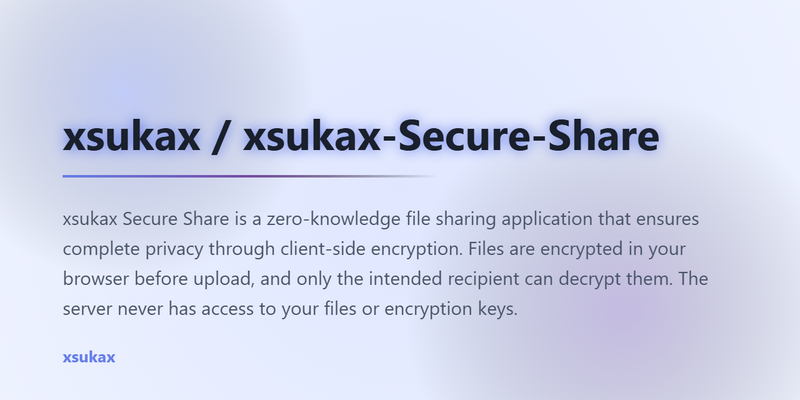
xsukax Secure Share – E2E Encrypted File Transfer
Build Your Own End-to-End Encrypted File Transfer System
Learn how to create and deploy a privacy-focused, self-hosted file sharing platform with true end-to-end encryption. This tutorial teaches you modern web development, cryptography implementation, and Linux system administration while building a production-ready application.
What You’ll Accomplish
You’re about to build a complete encrypted file transfer system from scratch that rivals commercial solutions like Firefox Send or Tresorit, but with one crucial difference: you control everything. No third parties, no data mining, no compromise. Files are encrypted in the browser before upload, transmitted securely, and only the recipient can decrypt them. Even you, as the server administrator, cannot read the files being transferred.
Time Required: 45-60 minutes
Difficulty: Intermediate (requires basic Linux knowledge)
Prerequisites: Linux server with root access, Node.js 14+ installed
Phase 1: Understanding the Foundation
1. Grasp What End-to-End Encryption Really Means
Before diving into commands, understand what makes this system secure. Traditional file sharing services encrypt files in transit (HTTPS) and at rest (server-side encryption), but the service provider holds the encryption keys. This means they can theoretically access your files.
End-to-end encryption (E2E) works differently. The encryption happens entirely in the sender’s browser using the Web Crypto API. The file is encrypted with a randomly generated key before it ever touches your server. That key is then transmitted directly to the recipient (not stored on your server). Your server only handles encrypted blobs—meaningless data without the keys.
Why this matters: Even if your server gets compromised, attackers only find encrypted files they cannot decrypt. Even you cannot read the files. True privacy.
2. Understand the System Architecture You’re Building
This isn’t just a simple upload/download script. You’re building a sophisticated system with multiple layers:
- Client-Side Layer: Browser-based encryption using AES-GCM-256, the same encryption standard used by the NSA for classified information. The Web Crypto API handles all cryptographic operations natively in the browser—fast, secure, and requiring zero external libraries.
- WebSocket Layer: Real-time bidirectional communication between sender and recipient. When someone sends you a file, you get notified instantly without refreshing the page. This creates a responsive, modern experience.
- Server Layer: Node.js + Express handles HTTP requests, while the WebSocket server manages live connections. SQLite tracks transfers, user sessions, and file metadata. Everything runs as a systemd service for automatic restarts and boot-time initialization.
- Storage Layer: Encrypted files live temporarily in an uploads directory. A background cleanup process automatically deletes files 1 hour after download, ensuring ephemeral security.
3. Verify Your Linux Server Meets Requirements
Execute this command to check your Node.js version:
node --versionYou need Node.js 14 or higher. If the command returns “command not found” or a version below 14, install or update Node.js first. On Ubuntu/Debian systems, use:
curl -fsSL https://deb.nodesource.com/setup_18.x | sudo -E bash -
sudo apt-get install -y nodejs
Next, verify you have root access since the installation requires system-level changes:
sudo whoamiThis should return “root”. If it prompts for your password and succeeds, you’re ready.
4. Understand What the Installation Script Will Do
The installation script you’re about to run performs several critical operations. It’s important to understand these before execution:
- Creates a dedicated system user (
secureshare) for security isolation—the application doesn’t run as root - Sets up a complete directory structure at
/opt/securesharewith proper permissions - Installs Node.js dependencies (Express, Multer, SQLite3, WebSocket library)
- Creates three main files: server.js (backend), crypto.js (encryption logic), app.js (frontend logic)
- Generates a systemd service file for automatic startup and management
- Configures logging to
/opt/secureshare/logs/
Understanding this structure helps you troubleshoot issues and customize the system later.
5. Prepare Your Server Environment
Before installation, create a clean workspace and download the installation script. Navigate to your home directory and create a temporary directory:
cd ~
mkdir -p secureshare-setup
cd secureshare-setup
Now download the installation script from the GitHub repository (or create it from the provided code). If you’re creating it manually, use nano or vim to create a file called xsukax-Secure-Share.sh and paste the installation script content.
Make the script executable—this is crucial or the installation will fail:
chmod +x xsukax-Secure-Share.shThe chmod +x command modifies the file’s permissions to allow execution. Without this, Linux treats it as a text file, not a runnable program.
Phase 2: Installation and Deployment
6. Execute the Installation Script
Now run the installation script with root privileges:
sudo ./xsukax-Secure-Share.shYou’ll see output scrolling by as the script works. This takes 2-3 minutes depending on your server’s speed and internet connection. The script is installing npm packages, creating files, and configuring services.
What’s happening behind the scenes: The script uses set -e at the top, which means it will stop immediately if any command fails. This prevents partial installations that could cause confusing errors later. Watch for any red error messages—if you see them, the script will stop and you’ll need to investigate before proceeding.
7. Verify the Service Started Successfully
Once the installation completes (you’ll see the success message with the checkmark emoji), verify the service is running:
systemctl status secureshareLook for the green text saying “active (running)”. This confirms the Node.js server started properly. You should also see recent log entries showing the service listening on port 3456.
If you see “failed” or “inactive”, check the logs for errors:
journalctl -u secureshare -n 50This displays the last 50 log entries. Common issues include port conflicts (if something else uses port 3456) or permission problems.
8. Understand the Service Management Commands
Your secure share system now runs as a systemd service, which means it behaves like any other system service (like nginx or ssh). Here are the essential commands you’ll use:
Check status (is it running?):
systemctl status secureshareView live logs (see what’s happening in real-time):
journalctl -u secureshare -fRestart the service (after making changes):
sudo systemctl restart secureshareStop the service (turn it off):
sudo systemctl stop secureshareStart the service (turn it back on):
sudo systemctl start secureshareSystemd will automatically restart the service if it crashes (thanks to Restart=always in the service file) and start it automatically when your server boots.
9. Examine the Directory Structure
Navigate to the installation directory to see what was created:
cd /opt/secureshare
ls -la
You’ll see this structure:
server.js– Main backend application (handles API requests, WebSocket connections)package.json– Node.js dependencies listnode_modules/– Installed npm packagespublic/– Frontend files served to browserspublic/js/– JavaScript files (crypto.js, app.js)public/css/– Stylesheet (styles.css)public/index.html– Main HTML interfaceuploads/– Temporary storage for encrypted fileslogs/– Service logs and error logsdatabase.sqlite– SQLite database (created on first run)
This organization follows best practices for Node.js applications, keeping code, data, and logs separate.
10. Test Direct Access to the Application
Open your browser and navigate to:
http://YOUR_SERVER_IP:3456Replace YOUR_SERVER_IP with your actual server’s IP address. You should see the modern, minimalist interface with “xsukax Secure Share” at the top and a “Generate ID” button.
Important security note: This connection uses plain HTTP, which is fine for testing but NOT for production use. We’ll set up HTTPS in later steps. Never transmit sensitive files over unencrypted connections on public networks.
11. Understand the Initial Connection Process
When you load the page, several things happen instantly:
- The browser requests the HTML, CSS, and JavaScript files from your server
- The JavaScript creates a WebSocket connection to ws://YOUR_SERVER_IP:3456
- The status indicator at the top right shows “Connecting…” initially
- Once the WebSocket handshake completes, the status dot turns green and shows “Connected”
If the status stays red and says “Disconnected”, check your firewall rules (Step 12). WebSocket connections require bidirectional communication, which some firewalls block.
12. Configure Firewall Rules
Your server likely has a firewall (UFW on Ubuntu, firewalld on CentOS). You need to allow traffic on port 3456 for the application to be accessible:
For UFW (Ubuntu/Debian):
sudo ufw allow 3456/tcp
sudo ufw status
For firewalld (CentOS/RHEL):
sudo firewall-cmd --permanent --add-port=3456/tcp
sudo firewall-cmd --reload
If you’re behind a cloud provider’s firewall (AWS Security Groups, Google Cloud Firewall), you’ll also need to add an inbound rule there allowing TCP port 3456 from your IP address (or 0.0.0.0/0 for public access, though this is less secure for testing).
Phase 3: Understanding the Technical Implementation
13. Explore How Client-Side Encryption Works
Open the crypto.js file to see the encryption implementation:
cat /opt/secureshare/public/js/crypto.jsThe CryptoUtils class implements AES-GCM-256 encryption. Let’s break down what this means:
AES (Advanced Encryption Standard) is the gold standard for symmetric encryption. Symmetric means the same key encrypts and decrypts data.
GCM (Galois/Counter Mode) is a mode of operation that provides both encryption and authentication. This prevents attackers from modifying encrypted data without detection.
256 refers to the key size—256 bits of entropy, which is effectively unbreakable with current technology. Even if someone captured your encrypted files, brute-forcing a 256-bit key would take longer than the age of the universe.
The encryption process:
- Generate a random 256-bit key using
crypto.subtle.generateKey() - Generate a random 12-byte initialization vector (IV)
- Read the file into memory as an ArrayBuffer
- Encrypt using
crypto.subtle.encrypt()with the key and IV - Prepend the IV to the encrypted data (the recipient needs it for decryption)
- Return both the encrypted blob and the base64-encoded key
The key never touches your server. It gets transmitted directly from sender to recipient through the URL or manually shared.
14. Examine the Server-Side Architecture
View the server code to understand how it handles requests:
cat /opt/secureshare/server.jsThe server is elegantly simple because it doesn’t handle encryption—that’s the client’s job. Here’s what the server actually does:
User Management:
- Generates random 6-character user IDs (like “A3K9X2”)
- Stores them in SQLite for verification
- No passwords, no authentication—just temporary IDs
File Transfer Workflow:
- Sender uploads an encrypted blob to
/api/file/upload - Server saves it with a UUID filename in the uploads directory
- Server records metadata (sender ID, recipient ID, filename, size) in SQLite
- Server sends a WebSocket notification to the recipient if they’re online
- Recipient requests transfer info from
/api/transfer/:transferId - Recipient downloads encrypted file from
/api/file/download/:transferId - Client-side JavaScript decrypts the file in the browser
Why this design is secure: The server never has access to encryption keys. Even if someone gains access to your database and uploads directory, they only find encrypted blobs and metadata—no actual file contents.
15. Understand the Automatic Cleanup System
Scroll to the bottom of server.js to see the cleanup interval:
setInterval(() => {
    db.all(`SELECT * FROM file_transfers
            WHERE delete_after < datetime('now') AND deleted = FALSE`,
            (err, transfers) => {
        // Delete old files
    });
}, 5 * 60 * 1000);
This code runs every 5 minutes and checks for files older than their expiration time (1 hour after upload). When found, it:
- Deletes the physical file from the uploads directory
- Marks the transfer as deleted in the database
Why this matters: Ephemeral file sharing is a key security feature. Files don’t linger indefinitely on your server, reducing the attack surface. If you want longer retention, modify the delete_after calculation in the upload handler (look for 60 * 60 * 1000—that’s 1 hour in milliseconds).
16. Explore the WebSocket Real-Time System
WebSocket provides bidirectional, full-duplex communication between clients and server. Unlike traditional HTTP (where the client always initiates requests), WebSocket allows the server to push data to clients instantly.
Here’s how it works in this application:
- When a user loads the page, JavaScript creates a WebSocket connection
- The server stores this connection in an
activeConnectionsMap, keyed by user ID - When someone sends a file, the server checks if the recipient is online
- If online, the server sends a JSON message through their WebSocket:
{ type: 'file_received', transferId: '...', filename: '...' } - The recipient’s browser receives this message and updates the UI instantly
- If the recipient is offline, no notification is sent—they’ll see the file when they reload
This creates a seamless, app-like experience without constant polling.
17. Analyze the SQLite Database Schema
Connect to the database to examine its structure:
sqlite3 /opt/secureshare/database.sqliteInside the SQLite prompt, run:
.schemaYou’ll see two tables:
users table:
id(TEXT PRIMARY KEY) – The 6-character user IDcreated_at(DATETIME) – When the ID was generated
file_transfers table:
id(TEXT PRIMARY KEY) – UUID for this transfersender_id(TEXT) – Who sent the filerecipient_id(TEXT) – Who receives itfilename(TEXT) – Original filename (for display purposes)file_size(INTEGER) – Size in bytesfile_path(TEXT) – Where the encrypted file is storedencryption_key(TEXT) – The base64-encoded key (stored temporarily, then deleted after download)created_at(DATETIME) – Upload timestampdownload_time(DATETIME) – When recipient downloaded itdelete_after(DATETIME) – Expiration timedeleted(BOOLEAN) – Has the file been cleaned up?
Security consideration: The encryption key is stored in the database temporarily. This is necessary for the recipient to retrieve it. However, once the file is downloaded, you could modify the code to immediately delete the key for enhanced security. Exit SQLite with .quit.
18. Examine the Modern Frontend Design
View the HTML structure:
cat /opt/secureshare/public/index.htmlThe interface follows a progressive disclosure pattern:
Initial state: Shows a hero section with “Generate ID” button
After ID generation: Reveals two panels—”Send File” and “Received Files”
During transfer: Shows progress indicators and status updates
The CSS uses CSS Grid for responsive layout, custom properties for theming, and modern techniques like backdrop-filter for glassmorphism effects. The design philosophy is “luxury minimalism”—sophisticated but not overdesigned.
Check the CSS:
head -n 50 /opt/secureshare/public/css/styles.cssNotice the use of CSS custom properties (:root variables) for colors and consistent spacing. This makes theme customization trivial—change a few variables and the entire interface adapts.
Phase 4: Using and Customizing Your System
19. Generate Your First User ID
In your browser, click the “Generate ID” button. Watch what happens:
- JavaScript sends a POST request to
/api/user/create - Server generates a random 6-character ID (e.g., “B7K2M9”)
- Server inserts it into the users table
- Server responds with the ID
- JavaScript stores it in localStorage
- Interface transitions from hero section to transfer panels
Click on your displayed ID to copy it to clipboard. Notice the subtle “Copied!” confirmation that appears briefly. This is good UX—always provide feedback for user actions.
20. Send Your First Encrypted File
To test file transfer, you’ll need two users. Open a second browser (or incognito window) and generate another ID.
In the first browser (Sender):
- Enter the recipient’s 6-character ID in the “Enter recipient ID” field
- Watch for the “Recipient verified” message (in green)
- Click the drop zone or drag a file onto it
- Click “Send Encrypted”
Behind the scenes, this is happening:
- JavaScript reads your file into memory
- Generates a random 256-bit AES key
- Generates a random IV
- Encrypts the file using Web Crypto API (this happens entirely in your browser)
- Uploads the encrypted blob to your server
- Server saves it and sends a WebSocket notification
In the second browser (Recipient):
You should see a toast notification appear: “New file from [SENDER_ID]”. The file appears in your “Received Files” panel.
21. Download and Decrypt a Received File
Click the “Download” button on a received file. Here’s what happens:
- JavaScript requests transfer info (includes encryption key)
- JavaScript downloads the encrypted blob
- JavaScript decrypts it entirely in the browser using the Web Crypto API
- JavaScript creates a downloadable link with the decrypted data
- Browser’s download dialog appears with the original filename
Critical security point: The decryption happens in your browser’s memory. The decrypted file never touches the server. This is the essence of end-to-end encryption.
22. Customize the Retention Period
By default, files are deleted 1 hour after upload. To change this, edit server.js:
sudo nano /opt/secureshare/server.jsFind this line in the upload handler (around line 80):
const deleteAfter = new Date(Date.now() + 60 * 60 * 1000);The math: 60 * 60 * 1000 = 60 seconds × 60 minutes × 1000 milliseconds = 1 hour
To change to 24 hours:
const deleteAfter = new Date(Date.now() + 24 * 60 * 60 * 1000);To change to 7 days:
const deleteAfter = new Date(Date.now() + 7 * 24 * 60 * 60 * 1000);Save (Ctrl+O, Enter) and exit (Ctrl+X), then restart:
sudo systemctl restart secureshareConsider the security tradeoff: Longer retention increases convenience but also expands the attack window. Files sitting on your server for weeks are more likely to be discovered in a breach than files that vanish after an hour.
23. Modify the File Size Limit
The default maximum file size is 1GB (1024 MB). To change it, edit the constant in server.js:
sudo nano /opt/secureshare/server.jsFind this line near the top:
const MAX_FILE_SIZE = 1024 * 1024 * 1024;For 5GB:
const MAX_FILE_SIZE = 5 * 1024 * 1024 * 1024;For 100MB:
const MAX_FILE_SIZE = 100 * 1024 * 1024;Performance warning: Larger files require more browser memory for encryption/decryption. On mobile devices or older computers, files above 1-2GB may cause browsers to slow down or crash. Also consider your server’s available disk space.
24. Customize the Visual Theme
The interface uses CSS custom properties for easy theming. Edit the styles:
sudo nano /opt/secureshare/public/css/styles.cssFind the :root block at the top:
:root {
    --primary: #000;
    --secondary: #666;
    --accent: #4F46E5;
    --success: #10B981;
    --danger: #EF4444;
    --bg: #FAFAFA;
    --card: #FFF;
    --border: #E5E7EB;
}
Change any color values to customize the theme. For a dark theme, try:
:root {
    --primary: #FFF;
    --secondary: #AAA;
    --accent: #818CF8;
    --success: #34D399;
    --danger: #F87171;
    --bg: #111;
    --card: #1F1F1F;
    --border: #333;
}
Changes take effect immediately—just refresh your browser. No restart needed since these are static files.
25. Add Password Protection to User IDs (Advanced)
For enhanced security, you might want to require passwords for user IDs. This requires modifying the database schema and adding authentication logic.
Add a password field to the users table:
sqlite3 /opt/secureshare/database.sqliteALTER TABLE users ADD COLUMN password_hash TEXT;
.quitThen modify server.js to hash passwords using bcrypt (requires installing bcrypt: npm install bcrypt). This is beyond the scope of this tutorial, but demonstrates how extensible the system is. You have full control over every aspect.
Phase 5: Production Deployment and Security
26. Set Up Nginx Reverse Proxy
Running directly on port 3456 works for testing, but production deployments should use port 80 (HTTP) or 443 (HTTPS) behind a reverse proxy. This provides multiple benefits: SSL termination, request buffering, rate limiting, and professional-looking URLs.
Install nginx:
sudo apt update
sudo apt install nginx -y
The installation script already created a basic nginx configuration at /etc/nginx/sites-available/secureshare. Examine it:
cat /etc/nginx/sites-available/secureshareThis configuration:
- Listens on port 80 (standard HTTP)
- Proxies all requests to localhost:3456 (your Node.js app)
- Handles WebSocket upgrade headers properly
- Sets appropriate proxy headers
Enable it:
sudo ln -sf /etc/nginx/sites-available/secureshare /etc/nginx/sites-enabled/
sudo nginx -t
sudo systemctl reload nginx
Now you can access your application at http://YOUR_SERVER_IP/ (no port number needed).
27. Install SSL Certificates with Let’s Encrypt
This step requires a domain name pointing to your server. You cannot get SSL certificates for IP addresses. If you don’t have a domain, skip to Step 28.
Install Certbot:
sudo apt install certbot python3-certbot-nginx -yObtain and install certificate (replace yourserver.com with your actual domain):
sudo certbot --nginx -d yourserver.comCertbot will:
- Verify you control the domain (HTTP challenge)
- Download certificates from Let’s Encrypt
- Modify your nginx configuration to use HTTPS
- Set up automatic renewal
After this completes, your application will be accessible at https://yourserver.com with a valid SSL certificate. The browser will show a padlock icon, and all traffic is encrypted in transit.
Important: While HTTPS encrypts data in transit, remember that your files are ALSO encrypted end-to-end before upload. This means double encryption—HTTPS for transport security plus AES-GCM for content security.
28. Configure Firewall for Production
In production, you should:
Close direct access to port 3456 (force traffic through nginx):
sudo ufw delete allow 3456/tcpAllow HTTP and HTTPS through nginx:
sudo ufw allow 80/tcp
sudo ufw allow 443/tcp
sudo ufw enable
Verify firewall status:
sudo ufw statusYou should see ports 80 and 443 open, but 3456 closed to external traffic. The Node.js application only accepts connections from localhost (127.0.0.1), which nginx proxies to.
29. Set Up Monitoring and Alerts
For production use, you need monitoring. Here’s a simple approach using a bash script and cron:
Create a monitoring script:
sudo nano /usr/local/bin/monitor-secureshare.shAdd this content:
#!/bin/bash

if ! systemctl is-active --quiet secureshare; then
    echo "SecureShare is down! Restarting..." | mail -s "Alert: SecureShare Down" [email protected]
    systemctl restart secureshare
fi
Make it executable:
sudo chmod +x /usr/local/bin/monitor-secureshare.shAdd to crontab to run every 5 minutes:
sudo crontab -eAdd this line:
*/5 * * * * /usr/local/bin/monitor-secureshare.shThis script checks if the service is running. If not, it sends you an email alert (requires mail configuration) and automatically restarts the service.
30. Regular Maintenance and Updates
Keep your system secure with regular maintenance:
Update Node.js dependencies monthly:
cd /opt/secureshare
sudo -u secureshare npm update
sudo systemctl restart secureshare
Check for security vulnerabilities:
cd /opt/secureshare
npm audit
If vulnerabilities are found, run:
sudo -u secureshare npm audit fix
sudo systemctl restart secureshare
Monitor disk usage (encrypted files consume space):
du -sh /opt/secureshare/uploads/Rotate logs (prevents logs from filling your disk):
Create /etc/logrotate.d/secureshare:
/opt/secureshare/logs/*.log {
    daily
    missingok
    rotate 7
    compress
    delaycompress
    notifempty
    create 0640 secureshare secureshare
}
What You’ve Accomplished
Congratulations! You’ve built and deployed a production-ready encrypted file transfer system with:
✅ True end-to-end encryption using AES-GCM-256
✅ Real-time WebSocket notifications
✅ Automatic file cleanup for ephemeral security
✅ Modern, responsive web interface
✅ System service with automatic restart
✅ Optional HTTPS with Let’s Encrypt
✅ Nginx reverse proxy for professional deployment
Skills you’ve developed:
- Client-side cryptography implementation
- Full-stack JavaScript development (Node.js + vanilla JS)
- WebSocket real-time communication
- SQLite database management
- Linux systemd service creation
- Nginx reverse proxy configuration
- SSL/TLS certificate management
Next steps to explore:
- Add multi-file support (currently handles one file at a time)
- Implement file compression before encryption (saves bandwidth)
- Add user authentication with passwords
- Create a mobile app using the API
- Add file preview generation (for images/documents)
- Implement chunked uploads for better progress tracking
- Add recipient confirmation before file deletion
Important Security Reminder: While this system provides strong encryption, always be mindful of operational security. Use HTTPS in production, keep your server updated, and consider implementing rate limiting to prevent abuse.
Need Help?
If you encounter issues:
- Check service status:
systemctl status secureshare - View recent logs:
journalctl -u secureshare -n 100 - Verify WebSocket connection in browser console (F12)
- Test API endpoints directly with curl:
curl http://localhost:3456/health
This project is open source on GitHub at xsukax/xsukax-Secure-Share. Feel free to explore the code, submit issues, or contribute improvements.
Built with privacy in mind. Your files, your server, your control.